
Your Gateway to X Advertising
Twitter Ads Manager login is your first step to running powerful ad campaigns on X (formerly Twitter). Here’s how to access your account right now:
Quick Login Steps:
- Log in to your X account at X.com
- Steer to ads.x.com
- If you manage multiple accounts, click your account name (top right) and select “Switch accounts”
Can’t log in? You’ll need an active X Ads account first. New accounts can take up to 2 weeks for review, and you must comply with X Ads policies to be eligible.
Whether you’re managing ad campaigns for a single franchise location or coordinating advertising across multiple sites, mastering your Twitter Ads Manager login is essential. The platform offers multi-user access with different permission levels, making it easy for teams and agencies to collaborate without sharing passwords.
You’ll also need to understand a few quirks of the platform. For example, you cannot change your time zone or currency after account creation. And if you want to stop advertising, you can’t actually delete your ads account—you have to cancel it by pausing campaigns and removing payment methods.
The good news? Once you’re in, X Ads Manager gives you powerful tools to create campaigns, track performance, manage billing, and control who has access to what. From viewing your invoices to granting your creative team the ability to compose Promoted-only Tweets, everything happens through this central dashboard.
I’m Rusty Rich, President and founder of Latitude Park, a digital advertising agency that’s been helping businesses steer platforms like Twitter Ads Manager login since 2009. Over the years, I’ve guided countless franchise marketers through the process of setting up scalable, multi-location ad campaigns while maintaining brand consistency across every touchpoint.
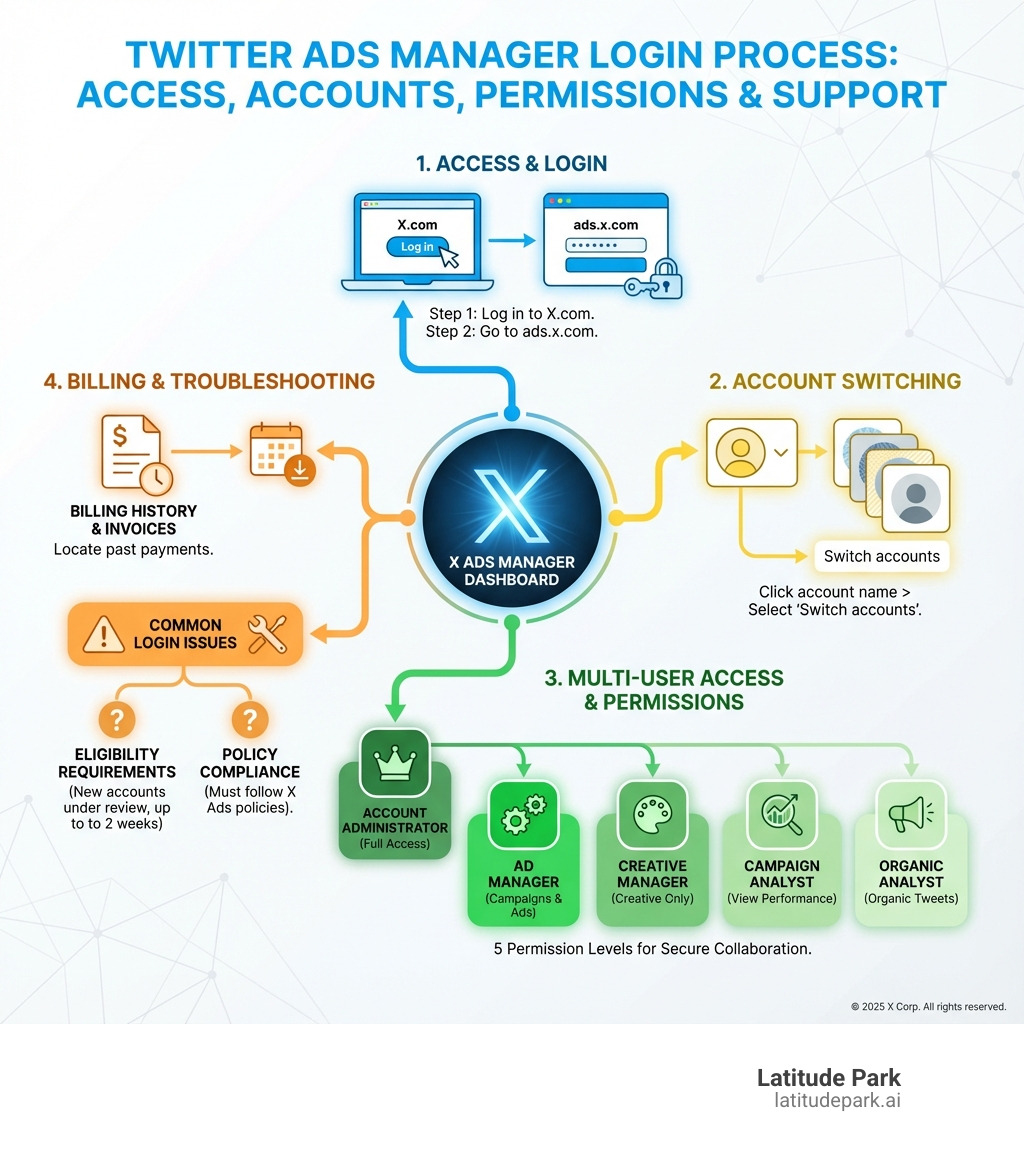
Quick twitter ads manager login definitions:
Navigating the X Ads Manager might seem daunting at first, but with this guide, we’ll explain the process. We’ll cover everything from your initial login to advanced user management, ensuring you have all the tools to effectively manage your X advertising efforts. Our goal is to empower you to securely access your ad accounts, collaborate seamlessly with your team, and leverage X’s powerful advertising features to grow your business.
How to Log Into X Ads Manager: A Step-by-Step Guide
Getting into your X Ads Manager account is usually a straightforward process. Think of it as opening the door to your advertising command center. Here’s how we guide our clients through the initial steps and beyond.
Accessing Your Ads Account
Before you can release your marketing genius, you need to get inside the Twitter Ads Manager login. Here’s our simple step-by-step guide:
- Start at X.com: First things first, head over to X.com. This is your home base.
- Log in to your X Handle: Use the X account (handle) that is associated with your ads account. If you’re using multi-user login, make sure you’re logging into the handle you use to manage the ads account.
- Steer to ads.x.com: Once you’re logged into your X account, simply go to ads.x.com in the same browser. X usually recognizes your logged-in session and takes you directly to your Ads Manager dashboard.
- First-Time Setup (If applicable): If this is your very first time, you might be prompted to set up your ads account. This typically involves agreeing to terms and conditions and possibly selecting your country and time zone (choose wisely, as these can’t be changed later!). If you need to create a new ads account, you can get started directly in your ads account. We have a helpful guide on how to Get started in your ads account.
You need to have an X Ads account already created to access the manager. If you haven’t set one up yet, the platform will guide you through the initial creation process.
Switching Between Multiple Ad Accounts
Many of our clients, especially those managing multiple franchise locations or various brands, often have more than one X Ads account. Switching between them is a breeze once you know how:
- Log in to ads.x.com: Follow the steps above to log into your primary X Ads Manager.
- Click Your Account Name: In the top-right corner of the Ads Manager dashboard, you’ll see your current ads account name. Click on it.
- Select “Switch accounts”: A drop-down menu will appear. Look for and click the “Switch accounts” option.
- Choose Your Desired Account: You’ll be presented with a list of all the ads accounts you have access to. Simply select the one you want to view or manage.
Voila! You’ll be instantly directed to the dashboard of your chosen ads account, ready to manage those campaigns. This feature is a lifesaver for agencies like ours, allowing us to seamlessly manage campaigns for various clients from a single login point. For a more comprehensive overview of the dashboard, check out the main Ads Manager screen.
Troubleshooting Common Login Issues
Sometimes, despite following all the steps, you might hit a snag with your Twitter Ads Manager login. Don’t fret, it happens! Here are some common reasons and what we recommend doing:
- Eligibility Requirements: Make sure your X account and ads account meet X’s eligibility criteria for advertising. This includes adhering to their ads policies. New accounts can take up to two weeks for review, so patience is a virtue here.
- Account Verification: Ensure your X account is fully verified. Sometimes, X requires additional verification steps for security or policy compliance.
- Suspended Account: If your X account or ads account has been suspended due to a policy violation, you won’t be able to log in. You’ll need to address the suspension first.
- Browser Issues: Clear your browser’s cache and cookies, or try using a different browser. Sometimes, old data can interfere with the login process.
- Incorrect Credentials: Double-check that you’re using the correct X handle and password. It sounds basic, but it’s a common oversight!
When to Contact Support:
- For ads-related issues: If you’re experiencing problems directly related to your ads account login, campaign management, or billing, your best bet is to file a support ticket. You can do this by going to ads.x.com and clicking on “Help?” in the top-right corner, which will lead you to Filing a support ticket.
- For non-ads X account issues: If your login problem is due to a hacked X account, general login issues not specific to ads, or other platform-wide problems, you should contact our X support team. The ads support team won’t be able to help with these general account issues.
Managing Account Access: Multi-User Login Explained
Working in digital marketing, especially for franchises, often means collaboration. X’s multi-user login feature for Ads Manager is a game-changer, allowing teams to work together securely without sharing sensitive login details. It’s like having a well-oiled machine where everyone has their specific role and access.
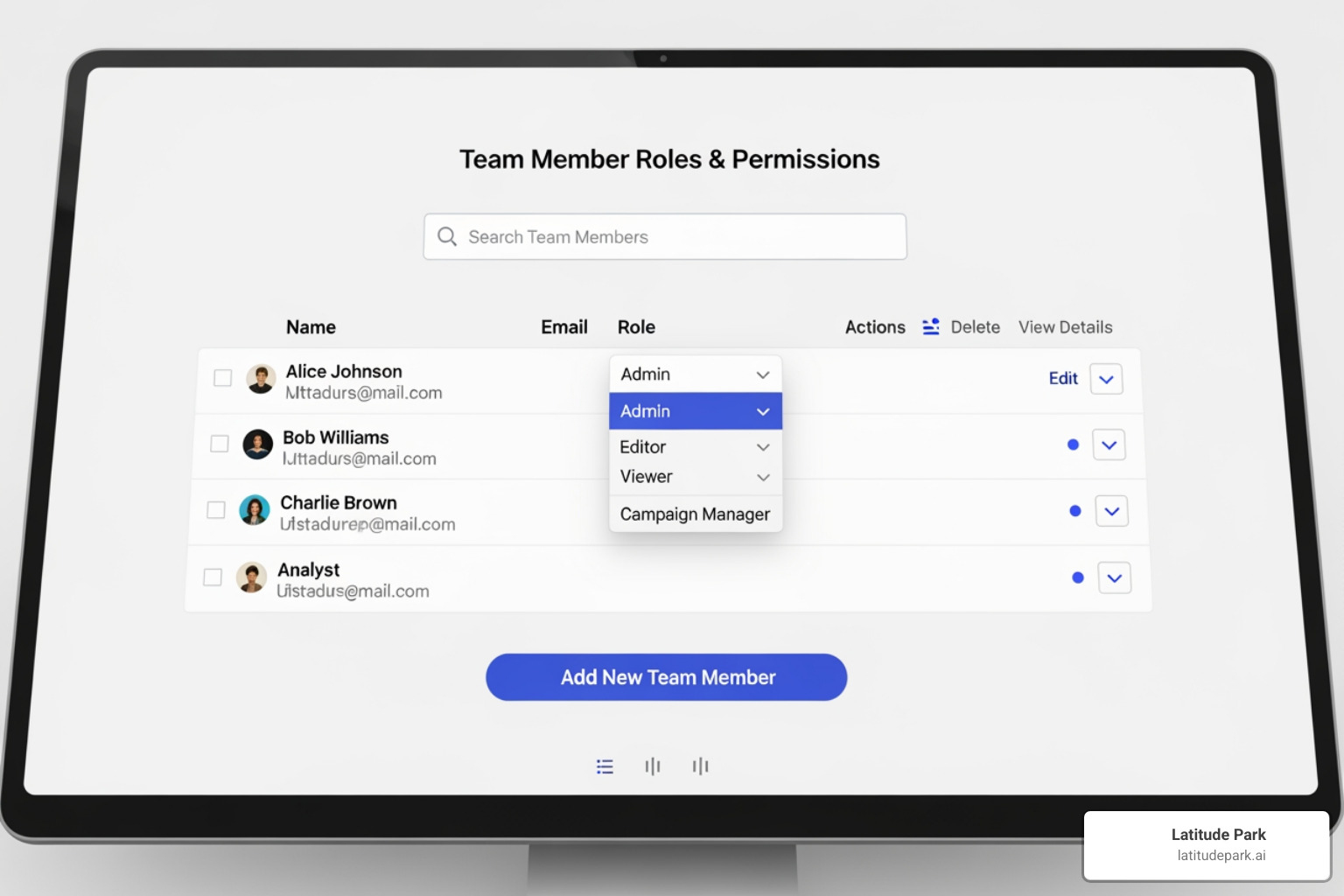
Understanding User Roles and Permissions
X Ads Manager offers distinct access levels, ensuring that each team member has precisely the permissions they need—no more, no less. This granular control is crucial for security and efficiency. We offer five main access levels, plus a specialized role:
| Access Level | Campaign Access | Billing Access | User Management | Reporting Access |
|---|---|---|---|---|
| Account Administrator | Full access to create, edit, pause, and delete campaigns | Full access (view, edit) | Can add/remove users, edit roles | Full performance data and analytics |
| Ad Manager | Can create, edit, pause, and delete campaigns | View performance data only | Cannot manage users | Full performance data and analytics |
| Creative Manager | Can modify creatives and view previews | None | Cannot manage users | View performance data for creatives |
| Campaign Analyst | Cannot create or make changes to campaigns | None | Cannot manage users | View performance data only |
| Organic Analyst | None | None | Cannot manage users | View X (Twitter) analytics (not ad performance) |
| Partner Audience Manager | Can make changes to Custom Audiences via X’s API (requires higher-level permission for changes) | None | Cannot manage users | View audience-specific data |
Note: Account Administrators and Ad Managers can also be granted the “Compose Promoted-only Tweets” permission, which we’ll discuss shortly. Campaign Analysts and Organic Analysts can never be granted this ability. You can find more comprehensive details on these More info on roles.
How to Add or Remove Users
Adding team members or agency partners to your X Ads account is a straightforward process designed for security and collaboration. Here’s how we do it:
- Log into ads.twitter.com: First, make sure you’re logged into the X Ads Manager with an Account Administrator role.
- Select ‘Edit access to account’: In the top-right corner of your dashboard, click on your ads account name. From the drop-down menu, select ‘Edit access to account’. This will take you to the multi-user login screen.
- Click ‘Add access’: To bring a new user into the fold, click the ‘Add access’ button.
- Enter User Handle and Assign Role: Type in the X handle (username) of the person you want to add. Then, carefully select the appropriate account role from the options listed above (e.g., Ad Manager, Creative Manager).
- Save Changes: Click ‘Save changes’ to finalize the invitation. The invited user will now be able to access your ads account using their own X login credentials.
Removing or Editing User Access:
If a team member’s role changes, or if they leave your organization, it’s crucial to update their access. On the same multi-user login screen, you can find the user in the list of contributors. From there, you can either:
- Click ‘Change role’ to assign them a different permission level.
- Click ‘Remove from account’ to revoke their access entirely.
Regularly checking and updating these permissions is a best practice we highly recommend, perhaps monthly, to ensure everything aligns with current company roles.
A Note for Agencies: Streamlining Client Campaign Management
For agencies like Latitude Park, managing multiple client campaigns on X Ads is a daily reality. The multi-user login feature is invaluable for us. It allows us to:
- Maintain Secure Client Access: We never need to ask clients for their X login credentials. Instead, clients grant us access to their ads accounts, and we log in using our own X handles. This keeps client accounts secure and separate.
- Seamless Collaboration: Our team members can access different client accounts based on their roles, ensuring that specialists (e.g., strategists, copywriters, analysts) can contribute effectively without overstepping boundaries.
- Efficient Campaign Management: This system simplifies the process of setting up, monitoring, and optimizing campaigns across various clients. We can easily switch between accounts and manage budgets, creatives, and reporting.
The key for agencies is to have clients set up multi-user login access for our agency’s X Ads account. This allows us to run campaigns on their behalf, offering a smooth and professional service. To learn more about how we streamline this process and manage X advertising for our partners, take a look at our Twitter Ads Management Guide.
Key Administrative Features and Settings
Once you’re comfortable with your Twitter Ads Manager login and user management, it’s time to explore some of the critical administrative features and settings that keep your campaigns running smoothly. These are the tools that help us keep tabs on spending, manage creative assets, and understand account limitations.
Finding Your Billing History and Invoices
Keeping track of your ad spend and accessing financial records is crucial for any business. X Ads Manager makes it easy to find your billing history and download invoices:
- Log in to ads.x.com: Access your X Ads Manager account.
- Click Your Profile Name: In the top-right corner of the dashboard, click on your profile name (or account name).
- Select ‘Billing history’: From the drop-down menu that appears, choose ‘Billing history’.
- View and Download Invoices: On the billing history page, you’ll see a record of all your transactions and invoices. You can typically view them directly or download them for your records.
This feature is incredibly helpful for auditing your ad spend, reconciling accounts, and ensuring transparency in your marketing budget. For advanced audience management features that might complement your billing review, you might also want to explore our Twitter Ads Audience Manager.
The ‘Compose Promoted-only Tweets’ Permission
Have you ever wanted to run an ad that looks and feels like a regular X post but only targets specific audiences? That’s the magic of Promoted-only Tweets! These are ads that function like organic Tweets when seen, but they are only shown to targeted users and do not appear on your organic timeline. This means you can test different ad creatives without cluttering your main X feed.
The ‘Can compose Promoted-only Tweets’ permission is a specific access level that allows users to create these special ad creatives within the ‘Creatives’ > ‘Tweets’ tab of the Ads Manager.
- Who can grant this permission? Only Account Administrators have the power to grant this permission.
- Who can receive this permission? It can only be granted to other Account Administrators and Ad Managers. Campaign Analysts and Organic Analysts can never be granted the ability to compose Promoted-only Tweets.
This feature is invaluable for A/B testing ad copy and visuals, allowing us to fine-tune messaging for different audience segments without impacting your organic content strategy. Learn more about Promoted-only Tweets and how they can boost your campaigns.
Important Account Limitations You Should Know
While X Ads Manager is powerful, it does have a few steadfast rules that are important to understand from the outset. We always make sure our clients are aware of these to avoid future headaches:
- Time Zone and Currency Restrictions: This is a big one! Once you’ve created your X Ads account and selected your time zone and currency, these elections cannot be changed. They are permanently locked in for that specific account. If you absolutely need to operate in a different time zone or currency, the only solution is to contact X Ads support and request a brand new ads account. Be aware that this means you’ll need to add a new payment method, and existing campaigns will not be transferred.
- Single Funding Source per Account: Each X Ads account is designed to have a single default funding source (e.g., a credit card). It’s not possible to run multiple campaigns within the same ads account using different credit cards. If you need to charge different campaigns to different funding sources, you’ll need to create separate ads accounts for each. This is a common strategy for agencies managing diverse clients or for businesses with distinct departments.
Understanding these limitations upfront helps us set up accounts correctly and plan for any necessary workarounds, ensuring your advertising operations run smoothly.
Account Eligibility and Cancellation
Meeting the Eligibility Requirements for X Ads
X, like any major advertising platform, has rules to ensure a safe and fair environment for advertisers and users alike. To be eligible to advertise, we ensure our client accounts adhere to the following:
- Active X Account: You need an active, established X account that is in good standing.
- Policy Compliance: All your ad content and practices must comply with X’s advertising policies. This covers everything from prohibited content (e.g., illegal products, hate speech) to ad creative guidelines. Violating these policies can lead to ad rejections or even account suspension.
- Account Verification: In some cases, X may require additional verification of your account or business identity, especially for certain types of ads or industries. You can learn about eligibility for verified accounts, which can play a role in advertising.
If you’re unsure about any aspect of eligibility, it’s always best to review X’s official advertising policies or consult with a digital marketing expert like us.
The Correct Way to Cancel Your X Ads Account
Sometimes, a business needs to pause or stop its advertising efforts on X. What many don’t realize is that you can’t simply “delete” an X Ads account in the same way you might delete a social media profile. Because it’s intrinsically linked to your X account, the process is more about cancellation than deletion.
Here’s how we guide our clients to correctly cancel their X Ads account:
- Pause All Active Campaigns: The first and most crucial step is to stop all active campaigns. You can do this by navigating to your campaigns within the Ads Manager and either pausing them individually or deleting them entirely. Ensure no campaigns are currently running or scheduled to run.
- Remove Your Payment Methods: Once all campaigns are paused, you need to remove your associated payment methods (e.g., credit cards) from the account. Steer to ‘Account’ > ‘Payment Methods’ within the Ads Manager. You’ll typically find an option to ‘Delete this card’. There might be a waiting period (e.g., 48 hours) after campaigns are paused and before you can delete a card, especially if there’s an outstanding balance.
- Settle Any Outstanding Balance: Make sure there are no pending charges or outstanding balances on the account. X will not allow you to fully disassociate payment methods until all dues are cleared.
- No Further Action Needed: After successfully pausing all campaigns and removing all payment methods, no further action is typically needed. The account will effectively be inactive, and you won’t incur new charges.
This process ensures a clean break from X advertising, preventing any unexpected billing or lingering active campaigns.
Frequently Asked Questions about the Twitter Ads Manager Login
We often get a lot of similar questions from clients and businesses trying to steer the X Ads Manager. Here are some of the most common ones we address, providing clear and concise answers to help you on your advertising journey.
Can I change my ads account’s time zone or currency after creation?
Unfortunately, no. This is one of those firm rules on X Ads. Once you set your time zone and currency when you first create your ads account, these settings are permanent and cannot be changed. It’s a bit like setting concrete! If you absolutely must operate under a different time zone or currency, your only option is to contact our X Ads support team and request the creation of a brand new ads account. When you do this, you’ll need to set up a new payment method, and critically, none of your existing campaigns will be migrated to the new account. You’ll have to set them up again from scratch. So, choose wisely when you first create your account!
What should I do if my twitter ads manager login fails?
A failed Twitter Ads Manager login can be frustrating, but there are several steps we recommend:
- Check Your X Account Status: First, ensure your main X account is active and not suspended. Ads account access is tied to your X account.
- Verify Eligibility: Confirm that your ads account meets X’s eligibility requirements and is in compliance with all advertising policies. New accounts can take a little time to be fully reviewed.
- Clear Browser Data: Sometimes, old cookies or cache can cause issues. Try clearing your browser’s cache and cookies or attempt to log in using a different web browser or incognito/private mode.
- Contact Support:
- For ads-specific issues: If the problem is clearly related to your ads account (e.g., campaign access, billing errors), use the platform’s dedicated support. Go to ads.x.com and click “Help?” in the top-right corner to open a support ticket.
- For general X account issues: If the problem is more fundamental, like your X account being hacked, general login problems not specific to ads, or suspension of your main account, then you need to contact our X support team. The ads support team cannot assist with these broader account issues.
What’s the difference between an Account Administrator and an Ad Manager?
These two roles are often confused, but they have distinct responsibilities and permissions within the X Ads Manager:
- Account Administrator: Think of this role as the “master key” holder. An Account Administrator has full access to the X Ads Manager. This includes the ability to create, edit, pause, and delete campaigns, view and manage billing information, and crucially, they can add or remove users and edit their access levels. They have full reporting access but cannot post organic Tweets.
- Ad Manager: This role is focused on campaign execution and analysis. An Ad Manager can access the X Ads Manager, create, edit, pause, and delete campaigns, and view all performance data. However, they cannot grant users access to the ads account, manage billing details, or post organic Tweets. They can, however, be granted permission to compose Promoted-only Tweets.
Essentially, an Account Administrator has overarching control and user management capabilities, while an Ad Manager is primarily focused on the day-to-day operations of campaigns. We use these distinctions to ensure efficient workflow and maintain security for our clients’ Twitter Ads campaigns.
Conclusion: Take Control of Your X Advertising
Mastering your Twitter Ads Manager login and understanding its functionalities is a fundamental step toward running successful advertising campaigns on X. We’ve walked through the essential process of logging in, navigating multiple accounts, and troubleshooting common issues. We’ve also explored the power of multi-user access, which is invaluable for secure team collaboration and efficient agency management.
The X Ads Manager offers robust tools for finding your billing history, managing specific permissions like “Compose Promoted-only Tweets,” and understanding critical account limitations such as the inability to change time zones or currency. By knowing these nuances, you can avoid potential pitfalls and set your campaigns up for success from the start.
And speaking of success, let’s not forget the power of innovative ad formats. Did you know that Vertical Video Ads account for approximately 20% of daily user time on X? Even more impressively, users are 7 times more likely to engage with Vertical Video Ads compared to identical ads on the Home Timeline! This is just one example of how optimizing your ad strategy within the Ads Manager can yield significant returns.
At Latitude Park, we specialize in helping businesses, especially franchises, steer the complexities of digital advertising. Our expertise ensures that you not only gain access to your X Ads Manager but also leverage its full potential to drive growth and achieve your marketing objectives. Take control of your X advertising today and master your campaigns with our Twitter Ads services. We’re here to help you shine!


