
Managing Multiple Twitter Ad Accounts Without the Headache
Why Managing Multiple Twitter Ads Feels Overwhelming — and How to Fix It Fast
If you’re trying to figure out how do I manage multiple Twitter ads across locations, clients, or campaigns, here’s the short answer:
Quick Answer: How to Manage Multiple Twitter Ads
- Log in to ads.x.com with your X account credentials.
- Click your account name in the upper-right corner and select Switch accounts to move between ad accounts.
- Use multi-user login to give team members or agency partners access — without sharing your password.
- Assign the right access level to each user (Administrator, Ad Manager, Creative Manager, etc.).
- Create separate ad accounts if you need different funding sources, currencies, or time zones per location.
- Contact X Ads support to request new accounts or a dedicated Account Manager for large-scale campaigns.
Running ads for a single location is manageable. But when you’re overseeing campaigns across multiple franchise locations — each with its own budget, audience, and creative — things get complicated fast.
X (formerly Twitter) reaches 544.5 million users globally as of 2026. That’s a massive opportunity. But without the right account structure, you end up with tangled permissions, billing confusion, and campaigns that are nearly impossible to track or scale consistently.
The good news? X Ads has a built-in system for exactly this situation. It just isn’t explained clearly in most places.
I’m Rusty Rich, President of Latitude Park, and I’ve spent over 15 years helping franchises and multi-location businesses figure out how do I manage multiple Twitter ads without losing control of their brand or budget. In this guide, I’ll walk you through everything you need to know — from access levels and account switching to billing setups and automation tools.
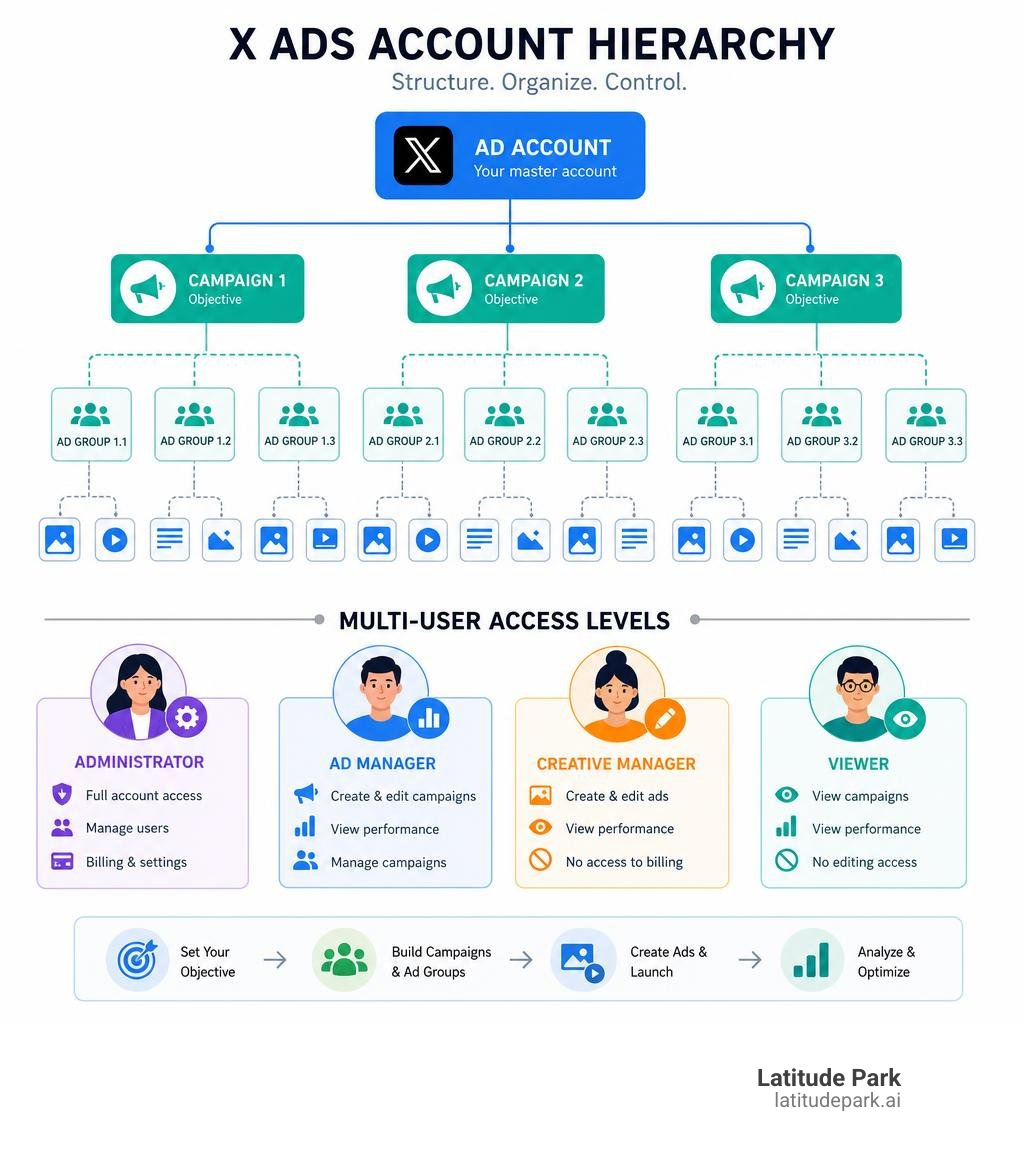
Know your how do i manage multiple twitter ads terms:
The Power of Multi-User Login: How Do I Manage Multiple Twitter Ads Securely?
The golden rule of digital marketing security is simple: never share your passwords.
When we talk to multi-location business owners who ask, “how do I manage multiple Twitter ads without giving everyone my primary login credentials?” our answer is always the same: Multi-User Login.
Multi-user login is a feature within the X Ads platform that allows you to grant specific access to other X users without handing over your password. This ensures your account remains secure while allowing your team, local managers, or agency partners to log in with their personal X handles to manage campaigns.
Why is this a game-changer?
- Security & Audit Trails: You can see exactly who made what changes. If a campaign budget is suddenly doubled or an ad is paused, you aren’t left guessing.
- Granular Control: You don’t have to give everyone full administrative rights. A graphic designer only needs access to upload creatives, while a local store manager might only need to view performance reports.
- No Verification Blockers: Since X requires two-factor authentication (2FA) for secure accounts, sharing a single password means constantly chasing down verification codes. Multi-user login bypasses this headache entirely.
To dive deeper into setting up your overall account strategy, check out our comprehensive Twitter Ads Management Guide to build a solid foundation.
Setting Up Multi-User Access and Switching Accounts
Setting up multi-user access is incredibly straightforward and takes less than five minutes. Here is how to do it:
- Log into ads.x.com using your main X credentials.
- In the top-right corner, click on your account name to open the dropdown menu.
- Select Edit access to account.
- Click the Add access button.
- Enter the exact X handle (e.g., @username) of the person you want to invite.
- Select their access level (we will break these down below) and decide if they need the permission to compose promoted-only posts.
- Click Save changes.
Once you have granted access, the invited user can easily log in to their own account, navigate to the top-right dropdown, and use the Switch accounts option to toggle between their personal account and the brand accounts they manage.
For a complete walkthrough of the login portal and how to troubleshoot common entry errors, refer to our guide on Twitter Ads Manager Login 2026.
How Do I Manage Multiple Twitter Ads for Clients as an Agency?
If you are an agency managing campaigns for multiple clients, or a franchise corporate team managing local franchisee accounts, the workflow is slightly different.
Instead of creating all client accounts under your own agency profile, the best practice is to have the client (or the individual franchise owner) set up their own X Ads account first. Once their account is live and their billing is set up, they should grant your agency team multi-user access.
This structure protects everyone:
- The client retains ultimate ownership of their data, pixel tracking, and billing history.
- The agency can manage all client campaigns from a single dashboard using the Switch accounts dropdown.
- If the relationship ever ends, the client simply revokes the agency’s access without needing to migrate campaigns or change credit cards.
For more information on structuring these relationships, consult the official X Business Advertising Guide.
Understanding X Ads Access Levels and Permissions
To manage multiple campaigns safely, you must understand the different access levels available on X. Giving every team member administrative rights is a recipe for accidental billing changes or user deletion.
X Ads offers five main access levels, plus a specialized role for custom audience management. Here is how they compare:
| User Role | Can Edit Campaigns? | Can View Billing/Invoices? | Can Manage Users? | Can View Analytics? |
|---|---|---|---|---|
| Account Administrator | Yes | Yes | Yes | Yes |
| Ad Manager | Yes | No | No | Yes |
| Creative Manager | Yes (Creatives Only) | No | No | Yes |
| Campaign Analyst | No | No | No | Yes |
| Organic Analyst | No | No | No | Yes (Organic Only) |
| Partner Audience Manager | No | No | No | No (Audience Only) |
Let’s look at these roles in more detail:
- Account Administrator: This is the “master key” of your ad account. Admins can create and edit campaigns, view billing history, change payment methods, and add or remove other users. Keep this role restricted to business owners and highly trusted financial officers.
- Ad Manager: This is the workhorse role for digital marketers. Ad Managers can build, launch, and optimize campaigns, but they cannot see billing details or manage other users. This is perfect for agency partners or senior marketing employees.
- Creative Manager: This role can access the “Creatives” tab to upload media, write posts, and build cards, but they cannot allocate budget or launch active campaigns. Assign this to your graphic designers and copywriters.
- Campaign Analyst: A read-only role. Analysts can view campaign performance and download reports but cannot make any edits. This is ideal for stakeholders who need to see ROI but shouldn’t touch the controls.
- Organic Analyst: This role can only see organic analytics. They have no access to paid campaign performance, making it a safe option for social media managers who only handle organic posting.
- Partner Audience Manager: A highly specialized role that allows third-party data partners to upload and manage custom target audiences without seeing any campaign performance or billing data.
Granting the ‘Compose Promoted-only posts’ Permission
When you add a user as an Account Administrator or an Ad Manager, you will see an optional checkbox: Compose Promoted-only posts.
What are promoted-only posts? Unlike organic posts that appear on your public profile timeline for all your followers to see, promoted-only posts are dark posts. They are only shown to the specific target audiences you select in your active ad campaigns.
This is incredibly valuable for A/B testing. For example, if you want to test five different headline variations to see which one drives the most conversions, you don’t want to spam your organic followers’ feeds with five nearly identical posts.
Only an Account Administrator can grant this permission. To learn more about setting up these specialized creatives, check out How to get started with Twitter Ads.
Troubleshooting: Why Can’t I Add a User to an Ads Account?
Sometimes, you will follow the steps to add a user, click save, and receive an error message. If you are struggling to add a user, check these three common roadblocks:
- Account Eligibility: The user you are trying to add must have an active, fully verified X account. If their account is brand new or lacks verification, X may block them from accessing advertiser tools.
- Pending Reviews: If your ad account is undergoing a routine policy review (which is common for new accounts and can take up to two weeks), user permissions may be locked until the review is complete.
- Country Restrictions: Ensure the user’s account settings match the country permissions of the ad account.
If you are still stuck, our guide on how to Stop Guessing and Start Managing Your Twitter Ads offers deep-dive troubleshooting steps for account access issues.
Handling Billing, Currencies, and Funding Sources Across Accounts
Managing multiple ad campaigns often means managing multiple budgets. This is where many multi-location businesses run into a wall.
Here is a critical platform limitation you must know: Each X Ads account can only have one default funding source, one currency, and one time zone. Once these settings are selected during account creation, they are permanent. You cannot change them.
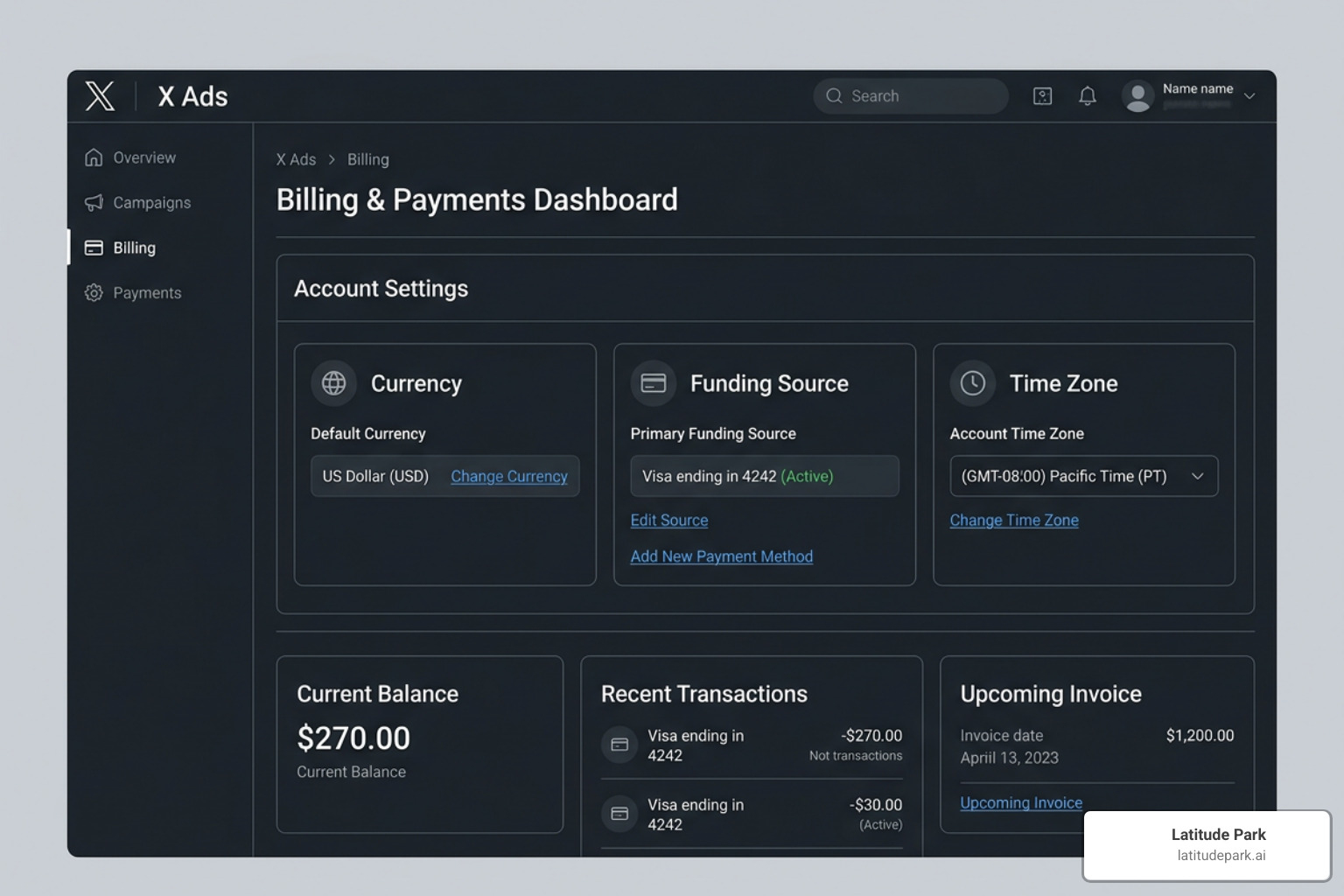
This means if you have ten franchise locations, and each location needs to pay for its own ads using a local credit card, you cannot run all of those ads out of a single X Ads account. You must create ten separate X Ads accounts.
To learn more about the technical structure of ad accounts, campaigns, and funding instruments, review the official Campaign Management documentation.
How Do I Manage Multiple Twitter Ads with Different Credit Cards?
If you need to bill different campaigns to different credit cards, the solution is to set up a multi-account structure.
We recommend creating a clear naming convention for each account (e.g., “Latitude Park – Austin,” “Latitude Park – Dallas”) to keep them organized. Once the accounts are created, you can add the specific credit card to each account’s billing profile.
By using multi-user login, your corporate marketing team can still access all of these accounts from a single login dashboard. When you want to check on the Austin campaign, you simply switch to the Austin account. When you want to check on Dallas, you switch to Dallas. The billing remains completely separated, and each location receives its own clean invoice.
X has recently updated its advertiser tools to make switching between these billing profiles even smoother. Read about these updates in Your X Ads Manager Just Got an Upgrade Don’t Miss These Features.
Advanced Automation and Dedicated Support
For enterprise advertisers and rapidly growing franchises, managing dozens of accounts manually can become a full-time job.
To scale efficiently, you can leverage advanced API integrations and AI-driven automation. For example, using Model Context Protocol (MCP) servers, you can connect tools like Claude AI to your X Ads accounts. This allows you to run automated audits, analyze keyword performance, and even adjust budgets across multiple accounts using simple conversational prompts.
To explore how to set up these cutting-edge workflows, check out the guide on How to Automate X (Twitter) Ads with Claude AI and MCP.
Additionally, if your combined ad spend across all accounts is substantial, you can submit a support ticket to request a dedicated X Account Manager. A dedicated manager can help you lift campaign limits (the default limit is 200 active campaigns per account, though it can be raised to 4,000) and assist with bulk account creation. For more tips on scaling, read Mastering the Twitter Ad Manager: Tips for Effective Campaigns.
Frequently Asked Questions about Managing Multiple X Ads Accounts
To help you run your campaigns as smoothly as possible, we have compiled answers to the most common questions we hear from multi-location advertisers.
Can I change the time zone or currency of an existing X Ads account?
No. Once an X Ads account is created, its time zone and currency settings are permanently locked. If you accidentally set up an account with the wrong currency or need to change it for billing reasons, you must create a new ads account. You can request a new account by submitting a support ticket through the X Ads Help Center.
How do I completely delete or cancel an X Ads account?
X does not allow you to permanently delete an ads account, but you can cancel it to ensure you are never charged again. To do this:
- Log into the account and pause all active campaigns.
- Wait 48 hours to ensure all pending ad delivery charges are finalized.
- Navigate to your payment methods and remove all credit cards or funding sources.
- Settle any outstanding balances.
Once the payment methods are removed and the balance is zero, the account will remain inactive and dormant.
How do I manage custom audiences across multiple accounts?
If you are running campaigns across multiple accounts but want to target the same customer list, you don’t have to upload the list to every single account manually.
By utilizing the Partner Audience Manager role or the audience sharing feature within the Twitter Ads Audience Manager, you can share custom audiences, tailored audiences, and pixel tracking data across multiple accounts that you control. This is incredibly useful for maintaining consistent retargeting campaigns across different regions. For a deeper look at building these high-value lists, check out our guide on the Twitter Ads Target Audience.
Conclusion
Figuring out how do I manage multiple Twitter ads doesn’t have to be a headache. By leveraging multi-user login, setting up a clean multi-account structure for billing, and assigning precise user permissions, you can scale your campaigns safely and efficiently.
At Latitude Park, we specialize in franchise marketing and multi-location digital advertising. We know that managing campaigns across dozens of locations requires a tailored approach that balances corporate brand control with local market flexibility.
If you are ready to take the stress out of your social media advertising and unlock the full potential of X’s 544.5 million users, let us do the heavy lifting. Explore Latitude Park’s Twitter Ads Management Services today, and let’s build a strategy that drives real growth for your business.