
A Complete Guide to Twitter Ad Account Management
Secure Twitter Ad Manager Access for Teams and Agencies
Twitter ad manager access lets you give teammates, agencies, and stakeholders entry to an X Ads account through their own X handles, without sharing a password. An Account Administrator adds each person, assigns a predefined role, and can later change or remove that access.
| Need | Best access approach |
|---|---|
| Launch and optimize campaigns | Ad Manager |
| Review results without making changes | Campaign Analyst |
| Create ad assets and promoted-only posts | Creative Manager, with the right permission |
| Manage billing and user access | Account Administrator |
| Post organic content or manage DMs | X account Delegate, not Ads Manager access |
For franchise marketing teams, this matters because a single wrong permission can expose billing details, allow unwanted campaign edits, or create inconsistent brand messaging across locations. X reaches hundreds of millions of monthly users, but safe access management starts with clear roles, separate user logins, and routine offboarding.
I’m Rusty Rich, founder of Latitude Park, and I have helped businesses build and manage multi-channel advertising programs since 2009. My experience with twitter ad manager access includes structuring practical permissions for media buyers, creative teams, and client stakeholders while keeping campaign ownership and brand controls clear.
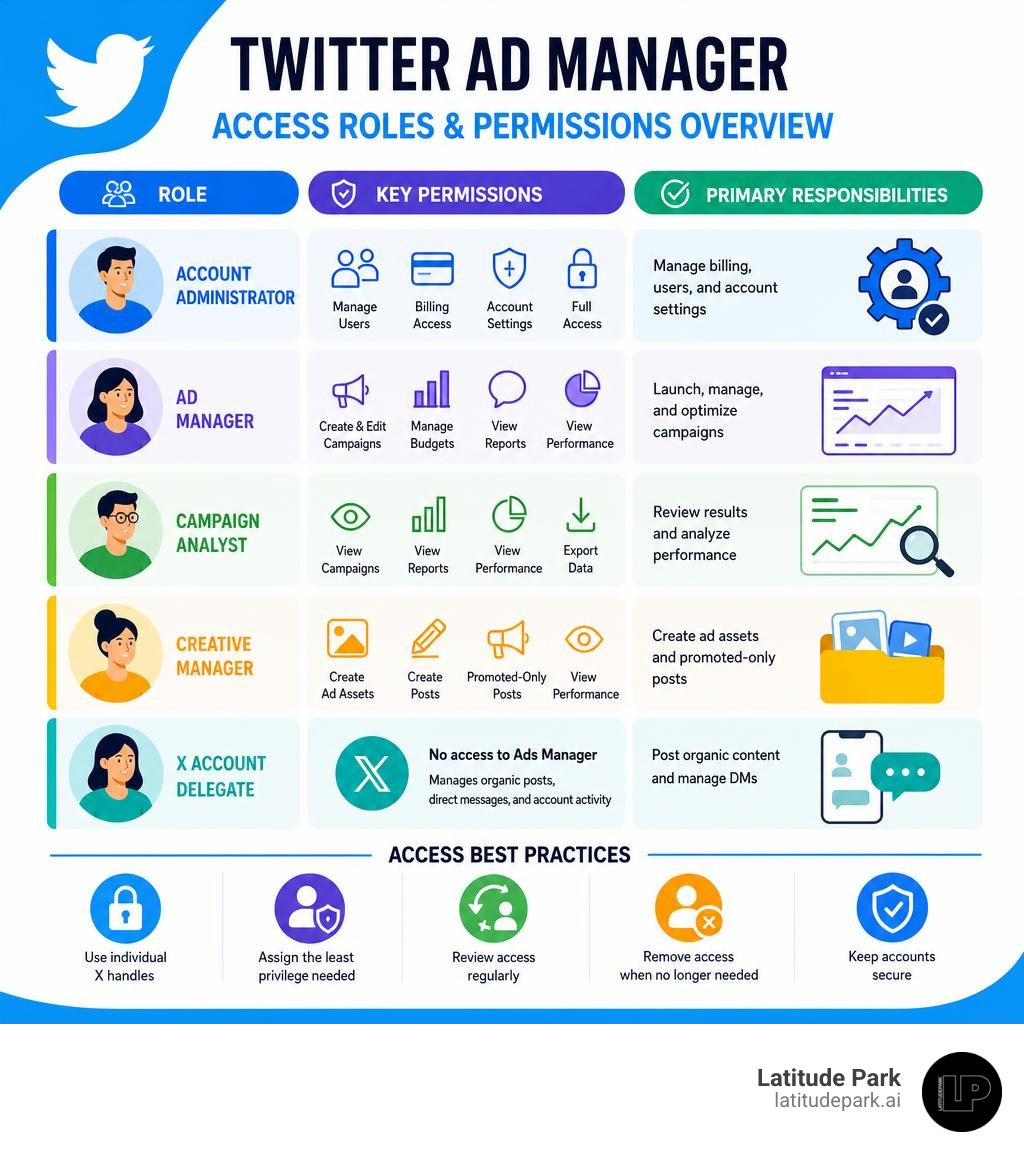
Twitter ad manager access terms to remember:
Introduction
Managing access to your Twitter (X) Ad Manager dashboard is essential for maintaining brand security, streamlining team collaboration, and executing successful paid campaigns. With over 368 million active users on the platform, businesses and multi-location franchises rely on advertising to connect with highly engaged audiences. Secure multi-user management ensures that team members, agencies, and external partners receive appropriate entry without sharing primary login credentials or compromising password protection. Understanding how Twitter Ads handles multi-user access structures allows organizations to safeguard sensitive financial assets while empowering media buyers and analysts to optimize performance efficiently.
When setting up team members or external partners, maintaining control over administrative rights is critical. The account owner who creates the original X Ads account retains ultimate ownership rights, creating a secure anchor that prevents unauthorized ownership takeovers. Because X Ads does not charge per-seat subscription fees or per-user license costs, your billing remains tied strictly to campaign performance metrics (like cost-per-click or cost-per-impression). You can add all necessary media buyers, graphic designers, and reporting analysts without incurring extra software fees.
Understanding Twitter Ad Manager Access Roles and Permissions
Twitter Ads Manager offers six distinct user access roles designed to enforce the principle of least privilege while enabling smooth operational workflows. Selecting the correct role ensures that each user has the precise permissions required to complete their daily tasks without risking accidental account edits or financial missteps.
- Account Administrator: Holds complete administrative control over the ad account. Administrators can manage user permissions, update default credit cards or invoicing options, adjust billing contacts, create campaigns, and view all account analytics. This role should be reserved strictly for business owners, corporate finance directors, or primary agency leads.
- Ad Manager: Serves as the primary operational role for media buyers and campaign managers. Ad Managers can launch, edit, pause, and optimize campaigns, access creative asset libraries, modify targeting parameters, and review billing statements without the ability to manage user access roles or alter fundamental account ownership settings.
- Campaign Analyst: Designed specifically for client stakeholders, regional franchise managers, or external auditors who require view-only performance reporting. Campaign Analysts can review performance dashboards, download custom reports, and monitor metrics without the capability to modify active budgets, launch new ads, or change targeting configurations.
- Creative Manager: Tailored for graphic designers, copywriters, and video editors. Users assigned to this role can view, upload, and edit creative assets within Media Studio and Tweet Composer, but they cannot create campaigns, set daily budgets, or view detailed financial billing records.
- Organic Analyst: Focuses purely on organic tweet performance and historical profile engagement metrics. This role allows social media managers to evaluate organic post reach alongside promotional activities without accessing campaign creation tools or advertising billing.
- Partner Audience Manager: Used primarily for integrating tailored audience segments, custom remarketing lists, and third-party data providers. This specialized role allows audience management without granting access to campaign budgets or payment credentials.
For a complete technical overview of permission levels, review the X Ads Add User Access Documentation.
Compose Promoted-Only Tweets Permission
In addition to primary access roles, Twitter Ad Manager includes a specialized toggle permission for composing promoted-only tweets. Often referred to as “dark posts,” promoted-only tweets do not appear on your brand’s main organic timeline or public profile feed. Instead, they are visible exclusively to targeted audience segments defined within active campaign parameters.
Account Administrators can grant or restrict this permission for team members holding Account Administrator or Ad Manager privileges. Toggling “Can compose promotable Tweets” empowers creative contributors and media buyers to draft highly tailored promotional messages—such as location-specific promotions or targeted lead generation offers—without cluttering your main corporate profile feed or alerting non-targeted followers.
How to Add, Edit, and Remove Users in Twitter Ads Manager
Maintaining robust account-level security requires established protocols for delegating access through individual credentials rather than shared login details. Utilizing modern access management practices ensures that every team member interacts with the ad account through their verified personal handle, providing clear accountability and auditability for all campaign activities.
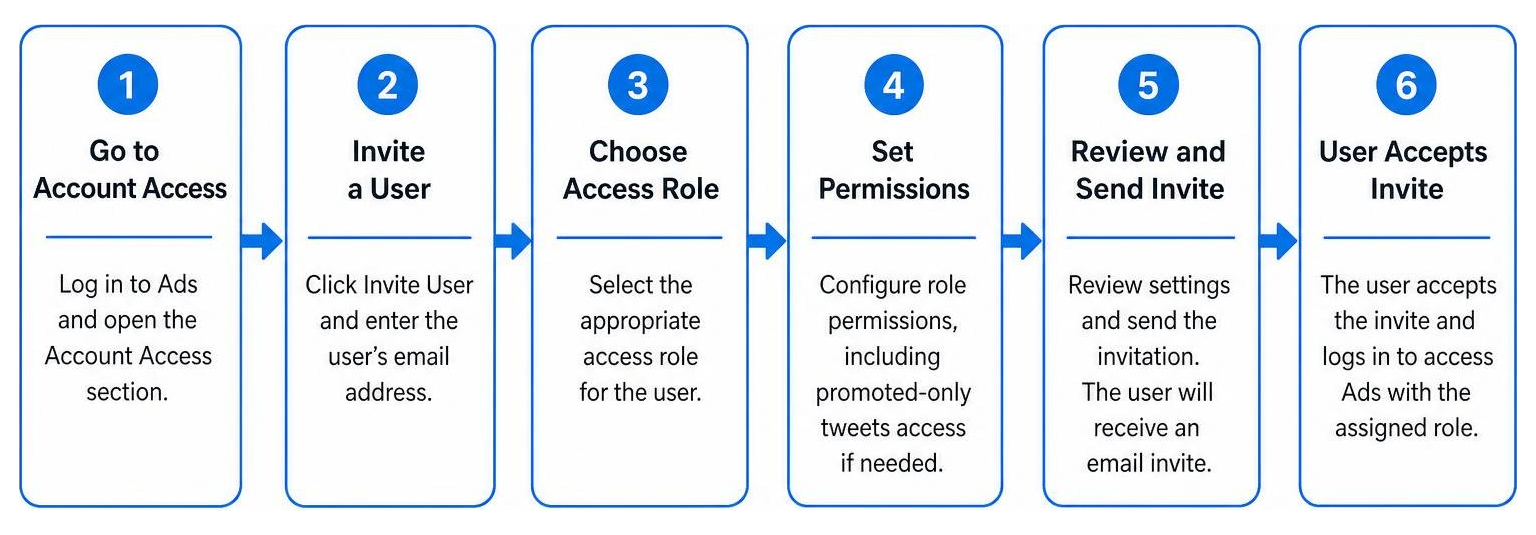
Step-by-Step Guide to Granting Twitter Ad Manager Access
Granting twitter ad manager access is a straightforward process completed entirely within the account management interface. Follow these steps to onboard a new team member or agency partner:
- Log in to Twitter Ads: Navigate to ads.twitter.com and log in using an account with Account Administrator privileges.
- Select the Target Account: If you manage multiple ad accounts, click the account name in the upper right-hand corner and select the correct account from the dropdown menu.
- Open Access Management: Click on your profile icon or account name in the top navigation bar and select “Edit access to account.”
- Initiate New Access: Click the prominent “Add access” button located in the upper right section of the user roster dashboard.
- Search for the User: Type the user’s exact X handle (e.g., @username) or their verified account email into the search field. Always verify the handle carefully to ensure you are inviting the correct profile.
- Assign the Access Level: Select the appropriate role (Account Administrator, Ad Manager, Campaign Analyst, Creative Manager, Organic Analyst, or Partner Audience Manager) from the dropdown list.
- Configure Special Permissions: If assigning an Ad Manager or Account Administrator role, check or uncheck the toggle for “Can compose promotable Tweets” based on whether they need dark post publishing capabilities.
- Save Changes: Click “Save changes.” The user will gain instant access to the account upon their next page refresh or login session.
For additional details on logging in and setting up your environment, check out the Twitter Ads Manager Login 2026 resource.
How to Revoke or Edit Twitter Ad Manager Access
Regular audit cycles and timely offboarding protocols are essential to keep your advertising account secure. Over time, contractors complete their assignments, internal team members transition to new roles, or agency agreements conclude. Leaving inactive accounts connected opens unnecessary security vectors.
To edit or revoke a user’s access:
- Log into ads.twitter.com as an Account Administrator.
- Click your account name in the top right menu and choose “Edit access to account.”
- Locate the user within the active user list.
- To change permissions, click the role dropdown next to their handle and select a new level.
- To revoke access completely, click the role dropdown menu and select “Remove access” (or “No access”), then save your updates.
Establishing systematic offboarding procedures prevents unauthorized changes and protects billing information when personnel or agency contracts end. In addition to manual user removal in the UI, ensure that API access tokens associated with third-party software or developer portals are revoked when no longer required, as UI access removal does not automatically destroy developer API keys.
Crucially, revoking a user’s access does not delete campaign historical data, active ads, or uploaded media assets. All campaigns created by a departed employee remain live, preserving full data persistence and campaign continuity for your marketing team. To learn more about navigating these settings effectively, consult A Beginners Guide To Navigating The Twitter Ad Manager.
User Delegation vs Multi-User Login & Agency Multi-Account Management
Understanding the distinction between X account delegation and X Ads multi-user login is vital for agencies and multi-location businesses. While both features allow shared management without password disclosure, they operate on completely different layers of the X platform.
| Feature | Primary Purpose | Key Capabilities | Where Managed |
|---|---|---|---|
| X Account Delegate | Organic profile management | Drafting tweets, replying to DMs, reviewing organic analytics | Desktop/Mobile X Settings > Security & Account Access |
| Multi-User Login (X Ads) | Paid advertising backend | Creating campaigns, managing budgets, viewing conversion analytics, updating ad assets | Twitter Ads Manager (ads.twitter.com) > Edit access to account |
X account delegation grants entry to the organic user handle, allowing social media managers to post public tweets, respond to direct messages, and moderate public replies. Multi-user login, on the other hand, delegates access specifically to the advertising backend and financial ad profile. An agency media buyer can hold full Ad Manager privileges inside Twitter Ads Manager without having permission to tweet organically or read private messages on the brand’s public handle.
Managing Multiple Twitter Ads Accounts Efficiently
For agencies managing dozens of handles or multi-unit franchise systems, efficiency hinges on organized workspace structures. Utilizing the account switching menu allows team members to pivot between client environments without logging out or juggling multiple browser sessions.
When an agency media buyer is added to multiple client ad accounts, clicking the account name dropdown in the top right corner displays a full master list of all connected ad profiles. Selecting any client handle immediately switches the interface view to that account’s specific campaigns, audiences, and performance dashboards.
Key considerations for managing multi-account agency workflows include:
- Separate Funding Sources: Twitter Ads operates on a strict single-default-funding-source rule per ad account. You cannot assign multiple credit cards to different campaigns within one ad account. Agencies running campaigns across distinct franchise units or regional billing centers must maintain individual ad accounts for each entity to keep payment methods separated.
- Client Ownership Security: Clients should always create and own the primary X Ads account, keeping the primary Account Administrator role on their internal corporate handle. The client then grants Ad Manager access to the agency handle. This structure guarantees that if the agency relationship changes, the client retains full campaign history and data ownership.
- Audit Logging Protocols: Because Twitter Ads does not feature automated bulk-invite CSV imports or centralized agency control centers (like Meta Business Manager or Google Manager Accounts), agencies must keep an internal access ledger documenting which team members hold access to each client account.
To dive deeper into scalable account architecture, review our Twitter Ads Management Guide and learn more about Managing Multiple Twitter Ad Accounts Without The Headache.
Limitations and Troubleshooting Common Ad Access Issues
Despite Twitter Ads Manager’s robust access controls, users occasionally encounter technical hurdles during account delegation. Understanding platform limitations helps prevent operational delays during critical campaign launches.
Primary limitations of the Twitter Ads permission model include:
- No Custom Permission Roles: You must assign one of the predefined roles (Account Administrator, Ad Manager, Campaign Analyst, Creative Manager, Organic Analyst, or Partner Audience Manager). The platform does not allow you to build hybrid roles or customize permission toggles beyond the “Compose Promoted-Only Tweets” setting.
- No Campaign-Level Scoping: Permissions apply across the entire ad account. You cannot restrict an Ad Manager or Analyst to a specific campaign, ad group, or geographic location. Anyone granted access can view all active and historical campaign data within that ad account.
- Manual User Onboarding: There is no bulk CSV upload option or account-group invitation system. Each handle must be added manually to every individual ad account.
- Primary Owner Hard Constraint: The handle that originally registers the X Ads account remains the primary Account Administrator and owner. Other Account Administrators cannot remove or downgrade the primary owner account.
When troubleshooting access errors, review these common causes and resolutions:
- User Search Handle Not Found: If a handle does not show up when clicking “Add access,” verify that the user’s profile is fully registered, active, and public. Newly created handles or profiles marked private/protected may fail to appear in search results. Ensure you are searching by their precise @handle rather than their display name.
- Account Not Appearing After Granting Access: If a user is added but cannot see the account in their dropdown menu, ask them to log out of ads.twitter.com, clear their browser cache, and log back in. Access changes update instantly in the database, but cached browser cookies can delay UI visibility.
- Blocked Invite Requests: In organic account delegation, users can disable incoming delegate requests in their privacy settings. If delegation invites fail, have the recipient check their Settings > Security and Account Access > Delegate preferences to ensure “Allow anyone to invite you” is enabled.
For developer-level access considerations, API token authentication, and multi-account technical integration, refer to the X Ads API Access Fundamentals.
Frequently Asked Questions About Twitter Ads Access
Managing user permissions effectively requires clear answers to standard operational questions regarding account safety, permissions oversight, and troubleshooting routine access delays.
Can I grant Twitter Ads access to someone who does not have an X account?
No, you cannot grant Twitter Ads access to an individual who does not have an active X account. The platform requires profile handle validation to link user permissions directly to a verified handle. Although administrative invites are sent to email addresses, the target user must have a registered handle associated with that email to complete the onboarding process.
What happens to active campaigns when an ad manager is removed?
Removing an Ad Manager or team member from your account does not affect running campaigns. Twitter Ads ensures campaign continuity and ad spend stability by keeping all active campaigns live, maintaining asset preservation, and retaining all historical performance metrics in your creative library.
Why can’t a newly added user see the Twitter ad account?
If a newly added user cannot see the account after being granted access, they should perform a manual dashboard refresh or clear their browser cache. Furthermore, verify that the handle was typed correctly during invitation, ensure the user accepts any in-app notifications, and confirm that both the ad account and the user’s personal profile remain in good standing.
Conclusion
Implementing rigorous access governance and proactive account security protocols is essential for protecting your brand’s digital presence and advertising budget. Whether you operate a single handle or coordinate multi-location marketing campaigns, structured permissions protect client data and prevent unauthorized spend. At Latitude Park, we specialize in franchise marketing and high-performance digital advertising, crafting tailored campaign structures that navigate complex business needs across major digital platforms. To learn how our team can elevate your paid campaign strategy, explore our Twitter Ads Management Services.